
Quick answer
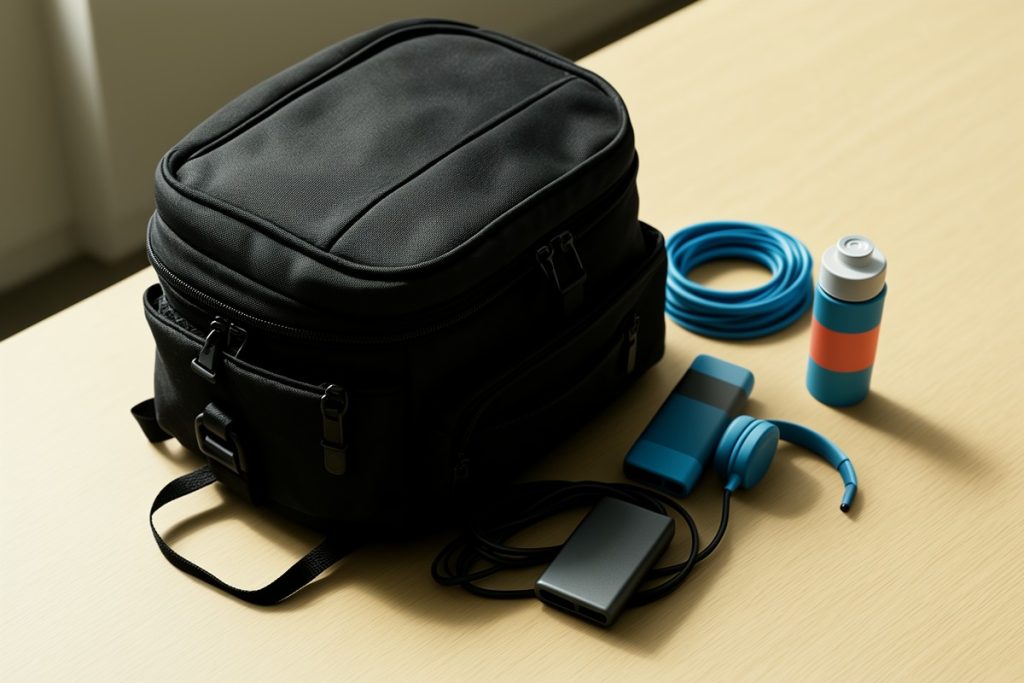
To set up a reliable digital nomad mobile office, design around your actual workday: choose a stable seat, secure your connection, place your laptop at a comfortable height, and keep power accessories easy to reach. Add a simple backup plan for weak Wi-Fi or crowded spaces. The goal is not carrying more gear; it is creating a repeatable setup that helps you work well almost anywhere.
Key takeaways
- Choose a workspace for stability, privacy, lighting, and internet quality—not just appearance.
- Raise your laptop when possible and use a separate keyboard or mouse for longer sessions.
- Keep essential power accessories together so setup takes minutes, not repeated searches.
- Always know your backup location, connectivity option, and file-access plan before starting important work.
By Casey Blake, Realistic Remote Work Advisor
Start with the workday, not the gear
A mobile office is not a particular collection of gadgets. It is a repeatable way to turn an unfamiliar table, café corner, library desk, or coworking station into a workable environment.
Before buying anything, write down what a normal workday requires. A video-heavy role may need dependable upload speeds, quiet surroundings, and a charging point. Writing or research may require fewer technical resources but more uninterrupted time. Client calls create privacy and background-noise requirements that do not matter as much for administrative work.
Separate your needs into three groups:
- Essential: the laptop, required charger, authentication method, and files or applications needed to work.
- Helpful: a mouse, compact keyboard, headphones, laptop stand, or portable light.
- Optional: duplicate accessories, extra adapters, or convenience items you rarely use.
This prevents a common nomad mistake: building a heavy kit around hypothetical problems while overlooking the conditions that actually affect productivity.
Pick a workspace that supports concentration
A beautiful view is not automatically a good office. Inspect a potential workspace using four practical questions:
- Can you stay there? Look for a chair and table that will remain comfortable for the length of your planned session.
- Can you connect? Check whether the Wi-Fi is usable before opening a meeting or uploading a large file.
- Can you protect your work? Avoid placing your screen where passersby can easily read it, and do not leave devices unattended.
- Can you leave smoothly? Keep your belongings organized so you can pack up quickly if the area becomes noisy or unsafe.
In a coworking space, a desk near a wall is often more practical than a central table because it reduces movement behind you. In a café, avoid the busiest walkway and test whether the chair height lets you work without hunching. Outdoors, glare, heat, wind, and unreliable connectivity can outweigh the novelty of the location.
Build an ergonomic setup from a laptop
Laptops are excellent for mobility but less ideal as a permanent desk arrangement. Their attached screen and keyboard force a compromise: if the keyboard is at a comfortable height, the screen may be too low; if the screen is raised, the keyboard may be awkward to use.
For a short session, adjust your chair and laptop so your shoulders can relax and your wrists remain reasonably straight. For a longer session, raise the laptop on a stable stand or firm platform and connect a separate keyboard and mouse. Keep the top portion of the screen around eye level when practical, with the display positioned to reduce glare.
Take brief movement breaks instead of waiting until your back, neck, or eyes feel strained. OSHA’s computer workstation guidance offers useful reference points for arranging screens, chairs, keyboards, and work surfaces. These suggestions are not a reason to chase perfect posture; they are a way to reduce avoidable discomfort during long work blocks.
Make power access predictable
Power anxiety can quietly damage a workday. You start checking the battery instead of concentrating, move seats mid-task, or discover that the one missing adapter is the exact item you need.
Use a simple power hierarchy:
- Charge your laptop and phone before leaving your accommodation.
- Carry the charger you actually use, rather than several untested alternatives.
- Check the outlet location when selecting a desk.
- Keep a small backup battery only if it is compatible with the devices and travel routine you have.
- Save important work before changing locations or connecting to unfamiliar power.
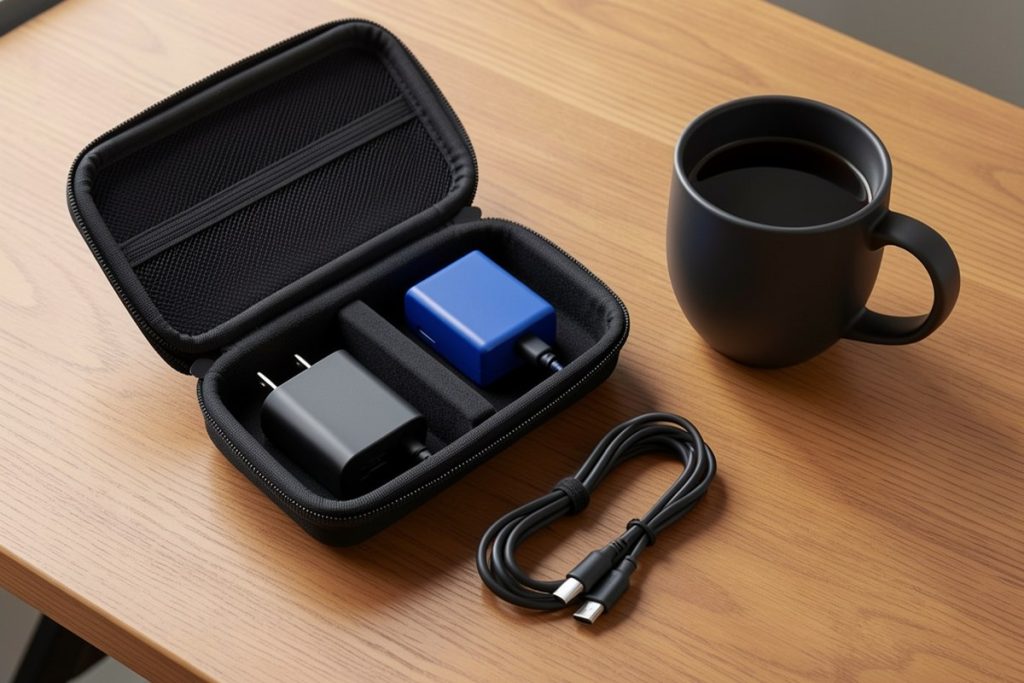
If your small power accessories routinely disappear into different pockets, an electronics organizer can solve a storage problem without changing your entire setup. The Osprey Transporter Powerhouse Electronics Organizer is worth considering if you want one dedicated place for travel electronics. It is not a replacement for choosing compatible chargers, checking battery needs, or carrying only what your work requires. Compare its size and layout with your existing kit before buying; an organizer is useful only when it fits the accessories you actually carry.
Protect your connection and accounts
Shared workspaces make convenience easy, but they also create privacy and security decisions. Treat public or shared Wi-Fi as a utility, not as a trusted extension of your home network. Confirm the network name with staff, avoid entering sensitive information on suspicious captive portals, and use your employer’s required security tools.
Turn on multi-factor authentication for email, cloud storage, banking, and work accounts. Keep your operating system and applications updated, and use a password manager if it fits your routine. CISA’s Secure Our World guidance emphasizes strong passwords, multifactor authentication, software updates, and recognizing phishing attempts—four habits that matter even more when you work across unfamiliar networks.
Also make your data available if the connection fails. Keep current files synced through an approved service, know which documents can be accessed offline, and confirm that your phone can provide a hotspot before you need it. If your work involves confidential client information, follow the organization’s rules for storage, screen privacy, removable drives, and public locations.
Use this five-minute setup checklist
- Seat: stable chair, workable table height, limited traffic behind you.
- Light: screen angled away from harsh glare; face a window only if reflections are manageable.
- Power: charger connected or battery level sufficient for the planned session.
- Connection: Wi-Fi tested, hotspot available, and important files accessible offline.
- Focus: headphones ready, notifications limited, and a clear finish time scheduled.
Run this checklist before opening your first call or deep-work document. It takes less time than relocating after a meeting has already started.
Create a backup plan before you need it
Reliable nomad work depends less on finding a perfect location than on having a second option. Identify one nearby fallback space with reasonable seating and connectivity. Save its address or directions offline. If you are traveling between towns, decide in advance whether your backup is a library, hotel lobby, coworking day pass, or a quieter café.
For important meetings, prepare a short failure plan: what you will do if Wi-Fi drops, your laptop battery runs low, or the environment becomes too loud. That might mean switching to a phone hotspot, moving to a reserved booth, or rescheduling nonessential tasks. You do not need an elaborate emergency kit; you need a clear next action.
Keep the system small and repeatable
The best mobile office is one you can set up without thinking. Store essential accessories together, keep a consistent order for connecting devices, and leave optional gear behind when the day’s work does not justify it. At the end of each session, save your files, sign out where appropriate, check for belongings, and return everything to its assigned place.
Review the setup after a week of real use. If you never use an item, remove it. If the same problem appears repeatedly—low battery, poor audio, uncomfortable posture, or unreliable Wi-Fi—solve that specific problem rather than adding random equipment. A practical mobile office should make travel work calmer, lighter, and easier to repeat.
Last reviewed: 2026-08-14
Sources
- Computer Workstations eTool — Occupational Safety and Health Administration
- Secure Our World — Cybersecurity and Infrastructure Security Agency
- Digital Identity Guidelines: Authentication and Lifecycle Management — National Institute of Standards and Technology