
By Derek Holt, Data-Driven Analyst
Quick answer
Better AI video calls usually come from four fixes: place the camera at eye level, light your face from the front, reduce room echo, and choose a frame that leaves comfortable space around you. An AI-tracking webcam can help when you move during presentations, but it cannot correct poor lighting, unstable internet, distracting backgrounds, or privacy mistakes.
Key takeaways
- Eye-level placement and front-facing light usually matter more than buying a higher-resolution camera.
- AI tracking is most useful for presenters who move; it is less important for stationary meetings.
- High-resolution and high-frame-rate modes may be limited by the video-call app, computer, or internet connection.
- Test framing, microphone pickup, permissions, and privacy controls before an important call.
Start with the problems your current setup creates
“Better video” is not one problem. A dark face, echoing room, low camera angle, frozen picture, and awkward framing each require a different fix. Before shopping, record a short local video or join a private test meeting. Check the result on another device if possible, because a preview can look acceptable on your own monitor while sounding poor to everyone else.
Write down the two biggest issues. If the image is dim and grainy, improve lighting first. If your voice sounds distant, address microphone placement and room acoustics. If you leave the frame during demonstrations, an AI-tracking camera may be more relevant than a sharper fixed webcam. This simple diagnosis prevents paying for features that do not solve your actual bottleneck.
Fix camera position and lighting before upgrading
Put the camera close to eye level, ideally on top of the monitor or on a stand directly behind it. A camera below your chin points upward and makes the background dominate the shot. A camera positioned far above eye level can make you look downward throughout the conversation. Keep the lens roughly an arm’s length away and frame from the upper chest to a little space above your head.
Use a window or lamp in front of you rather than behind you. Backlighting turns your face into a silhouette, while a bright ceiling light can create shadows beneath your eyes. A small diffused lamp placed slightly to one side often produces a more natural result than a harsh light directly above the monitor. If sunlight changes dramatically during the day, close sheer curtains or add a consistent lamp so your appearance does not shift halfway through a call.
Resolution helps preserve detail, but it does not replace good illumination. A well-lit 1080p image can look more useful in a meeting than a poorly lit 4K image. Higher modes may also consume more processing power or bandwidth, and many calling platforms compress the outgoing video.
Match AI features to the way you present
AI features in webcams are practical when they reduce a repeated task. Auto-framing can keep a speaker centered. Subject tracking can follow someone who moves between a desk and a whiteboard. Gesture controls can be convenient when the presenter cannot reach a keyboard, although accidental gestures or poor lighting may reduce reliability. These features should support your presentation, not become the presentation.
| Reader problem | Feature worth prioritizing | Important limitation |
|---|---|---|
| You move while explaining or demonstrating | Pan, tilt, zoom, or subject tracking | The camera needs a clear view and may reframe at inconvenient moments. |
| Your room has changing daylight | HDR or automatic exposure control | It cannot remove a strong backlight or brighten a completely dark room without adding noise. |
| You use voice calls at a desk | Built-in microphones with noise reduction | A dedicated microphone can still be preferable in a noisy or echoing space. |
| You record tutorials or streams | Higher resolution and frame-rate options | Your software, computer, and upload connection must support the selected mode. |
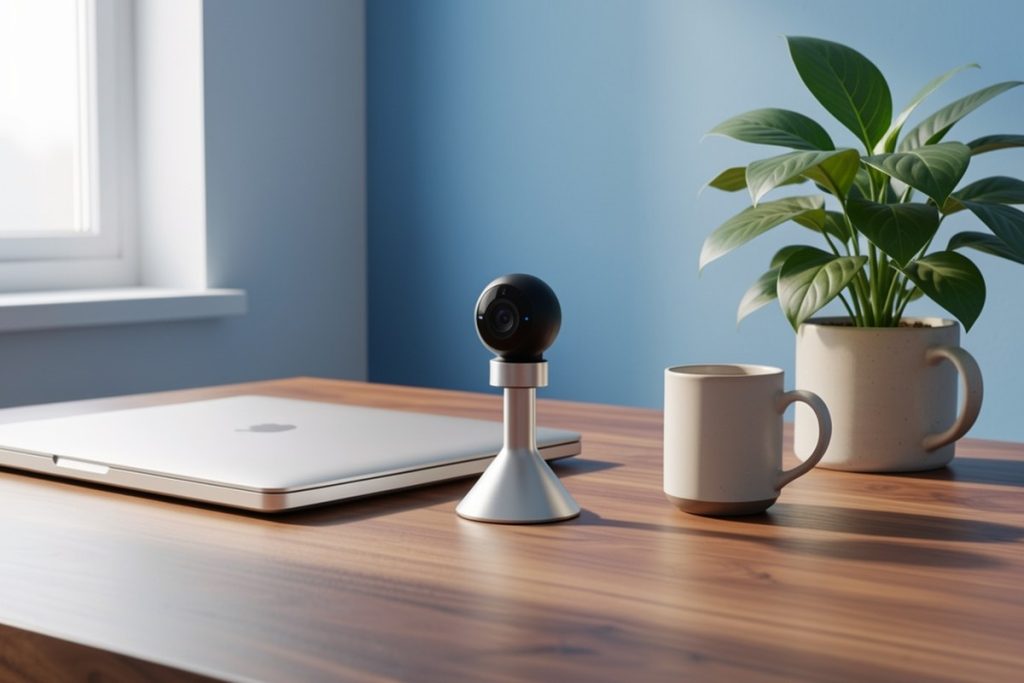
For a solo presenter who frequently moves, the OBSBOT Tiny 2 Lite 4K Webcam for PC is a reasonable feature-led option to investigate. Its supplied listing describes AI tracking, pan-tilt-zoom movement, gesture control, 4K video, up to 60 frames per second, HDR, and built-in microphones. Those specifications make it more relevant to presentations, streaming, and active video calls than to someone who simply sits at a desk for short meetings.
The balanced view is important: this is not a hands-on test, and listed specifications do not guarantee that every feature will work identically in every app. A calling service may cap resolution or frame rate, gesture controls may be unnecessary for your workflow, and built-in microphones may not outperform a separate microphone in a reflective room. Check software compatibility, mounting options, privacy controls, and return terms before buying.
Improve sound without making your desk complicated
People will usually tolerate an imperfect picture longer than unintelligible audio. Start by moving the microphone closer to your mouth and farther from fans, keyboards, and open windows. If the room sounds hollow, add soft materials: curtains, a rug, bookshelves, or upholstered furniture can reduce reflections. You do not need to cover every wall with acoustic foam to make a noticeable improvement.
Use your meeting app’s microphone test before joining a real call. Speak at your normal volume, then listen for clipping, room echo, and inconsistent levels. Noise suppression can help with a steady fan or air conditioner, but aggressive filtering may remove parts of speech. If your voice matters more than convenience, compare the webcam microphone with a headset or USB microphone during the same test.
Keep the frame useful and distraction-free
A professional home-office background does not need to be empty. It should simply have a clear visual hierarchy. Place the camera so the background supports your role rather than competing with you. A plant, shelf, or lamp can add depth; a bright window, messy cables, or a constantly moving doorway can pull attention away.
Leave enough space for natural movement. If auto-framing repeatedly crops your shoulders or cuts off a presenter’s gestures, move the camera farther back or widen the field of view. For screen-sharing tutorials, remember that the webcam view and the shared content serve different purposes. A camera that tracks well in a face-to-face call may be less useful when most of the meeting is a slide presentation.
Use this five-minute pre-call checklist
- Place the lens at eye level and check that your head and upper torso fit comfortably in the frame.
- Turn on a front-facing light and check for glare, deep shadows, or a bright window behind you.
- Confirm the correct camera and microphone are selected in the meeting app.
- Test tracking, zoom, gesture controls, and HDR in a private session rather than during the live call.
- Close unnecessary applications, stabilize your network connection, and cover or disconnect the camera when it is not in use.
Protect privacy when using an AI-enabled webcam
A webcam is still a connected input device, even when its intelligent features are turned off. Review which applications have camera and microphone permission, and grant access only to software you recognize. Browser-based meetings may request permission separately from desktop applications. The Google Chrome camera and microphone permissions guide explains how browser access works.
Use a physical privacy shutter or unplug the device when practical. Keep its firmware and meeting applications updated through official channels, and avoid installing unverified camera utilities. For workplace calls, confirm whether recordings, transcripts, or automated meeting summaries are enabled. NIST’s AI Risk Management Framework is a useful reminder to consider trust, privacy, and potential harms when adopting AI-enabled tools—not just convenience.
Choose based on your repeatable use case
A fixed webcam is often the sensible choice for routine one-person meetings. Choose an AI-tracking PTZ model when you regularly stand, teach, demonstrate products, move around a room, or record content without another person operating the camera. If you mainly need clearer speech, spend first on lighting and audio. If you need a camera for a shared conference room, verify the field of view and microphone pickup rather than assuming a desktop model will cover everyone.
The best setup is the one that behaves predictably. Test the complete chain—camera, microphone, application, lighting, computer, and network—before judging a specification in isolation. That approach produces better calls and makes it easier to tell whether an AI webcam is solving a real problem or simply adding features to your desk.
Last reviewed: 2026-08-14