
Quick answer
You can record a hands-free AI tutorial with a phone by narrowing each video to one outcome, mounting the camera at eye level, lighting your face and work area, and using short takes. A face-tracking stand can keep a moving presenter framed, while a remote or gesture control can reduce retakes. It cannot fix poor audio, confusing instructions, weak lighting, or privacy mistakes.
Key takeaways
- Teach one repeatable result per video instead of explaining an entire AI tool at once.
- Frame yourself and the relevant work area before recording; tracking is useful only when the camera has a clear view.
- Prioritize audio, lighting, and readable demonstrations over elaborate equipment.
- Record a 20-second test to check framing, focus, background notifications, and sound.
Choose one useful result before you press record
The easiest hands-free tutorial to watch is not a tour of every feature in an AI app. It answers one narrow question, such as “How do I turn meeting notes into action items?” or “How can I create three headline ideas from a rough draft?”
Write the intended result in one sentence, then build the video around it. A simple structure works well:
- Show the starting problem. Briefly explain what the viewer has and what is missing.
- Demonstrate three to five actions. Say what you are doing and why it matters.
- Show the finished result. Mention one limitation or check the viewer should not skip.
This approach keeps the recording manageable and makes editing easier. It also stops the camera setup from becoming the main event. The viewer came for a practical AI workflow, not a long introduction to your equipment.
Build a camera position that supports the lesson
Place the phone at roughly eye level if you are speaking to the viewer. If the lesson includes a keyboard, notebook, product, or other physical object, angle the camera slightly downward without cutting off your face. The goal is to keep the presenter and the important action in a predictable area of the frame.
Leave enough space for natural movement, but do not give the tracking system an unnecessarily large room to search. A plain background, steady lighting, and a clear subject make automated framing easier to assess. Avoid standing directly beside a bright window, because the background may become much brighter than your face.
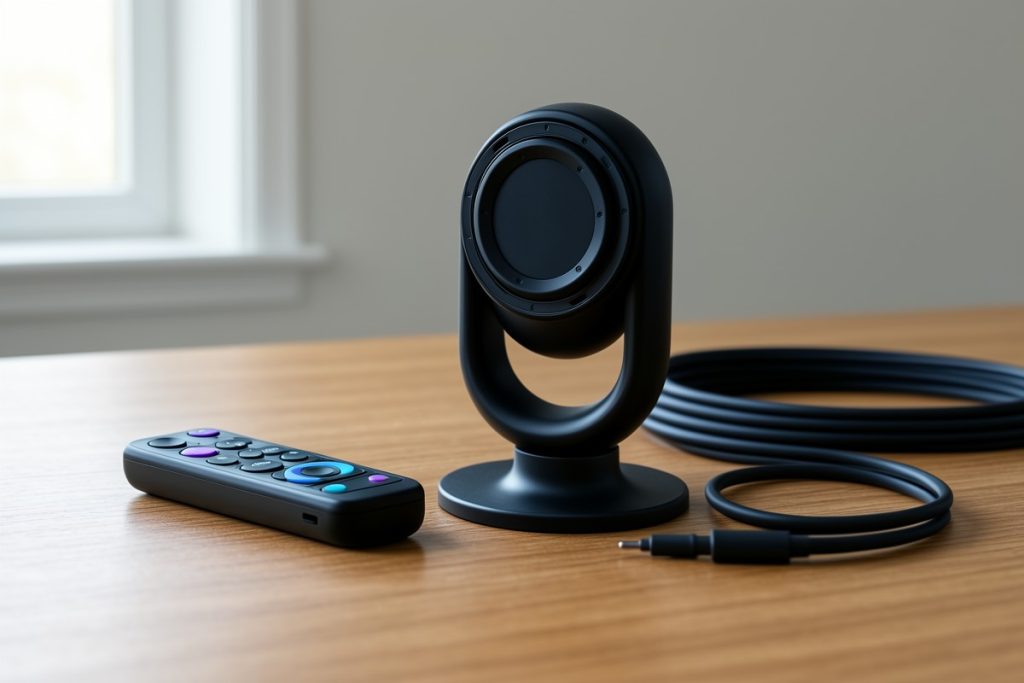
The approved Auto Face Tracking Tripod 360° Rotating Cell Phone Photo and Video Kits Stand may suit a solo creator who wants a rotating stand with the listing-described face tracking, remote, gesture control, and rechargeable operation. That is a convenience feature, not a guarantee of smooth tracking in every room, phone, or camera app. Check the listed compatibility and your phone’s fit before buying; this article is not based on hands-on testing.
Use lighting and sound to make the explanation clear
Viewers will forgive a simple background more readily than muddy speech. Start with the light. A window or soft lamp in front of you is usually more useful than a bright light behind you. If your tutorial includes a work surface, add enough light to prevent shadows from covering the action.
Next, listen for problems before recording the full lesson. Air conditioners, fans, traffic, and a hollow room can make a technically correct tutorial tiring to follow. Move closer to the phone or use a microphone if you have one. A cheap setup with clear audio is more valuable than a sophisticated stand paired with distant, echoing speech.
Keep the background quiet and intentional. Remove private mail, account details, client information, and anything that could distract from the demonstration. If you are showing an AI service, prepare a sample prompt that contains no confidential data. Never use real customer records merely to make a demo look more authentic.
Run a short test before recording the complete tutorial
Do not discover a framing or sound problem after explaining the entire process. Record a short test in the actual position you plan to use. Walk a step or two if the stand is meant to follow you, then stop and review the result.
- Framing: Is your face visible, and does the important work area remain inside the shot?
- Movement: Does the camera move smoothly, or does it turn too far when you leave the center?
- Sound: Can you understand every sentence without turning the volume up?
- Privacy: Are notifications, names, email addresses, and unrelated browser tabs hidden?
- Lesson flow: Can a viewer tell what to do next without pausing every few seconds?
Make one adjustment at a time. If you change the lighting, camera angle, microphone position, and script simultaneously, you will not know which change solved the problem. A short test also reveals whether a remote or gesture feature is genuinely helpful for your setup or simply adds another control to remember.
Record in short takes, not one perfect performance
Hands-free recording can make you feel as though you need to deliver the whole tutorial without stopping. You do not. Record the introduction, each major step, and the conclusion as separate clips. Pause briefly between sections so you have clean places to cut.
When you make a mistake, stop speaking for a moment, repeat the sentence clearly, and continue. That pause gives you a visible and audible editing point. Keep the camera position unchanged between takes, and note the order of clips if the lesson has several steps.
For AI demonstrations, say what the tool produced and what you changed. AI output can vary, so avoid presenting one result as guaranteed. Explain the judgment a viewer still needs to apply: checking facts, removing irrelevant suggestions, protecting personal information, or editing the final wording.
Make the finished tutorial easier to follow
Trim dead air and repeated attempts, but do not edit out every pause. Viewers need time to understand a prompt, locate a control, or compare an input with an output. Add concise captions and review them for errors, especially for technical terms and product names. The W3C treats captions as an important way to make prerecorded content accessible to people who cannot hear the audio.
End with a small next step rather than a vague request to “learn more.” Ask viewers to recreate the workflow with a harmless sample, compare the result against their original task, or save the prompt structure for later. A useful ending reinforces the lesson and gives the recording a practical payoff.
A simple hands-free recording checklist
Before publishing, confirm that you have:
- One clearly stated viewer outcome.
- A stable camera position and a background without private information.
- Front-facing light and understandable audio.
- A short test clip reviewed before the full recording.
- Separate takes for the introduction, steps, and conclusion.
- Captions checked for accuracy and a final demonstration that matches the explanation.
The best AI tutorial setup is the one that removes friction without distracting from the teaching. A tracking stand can help a solo creator stay in frame, but planning, privacy, sound, and clear instructions determine whether the video is genuinely useful.
Last reviewed: 2026-11-06