

Quick answer
Use a smart plug to automate low-risk AI workstation accessories such as lamps, fans, and chargers—not the computer, external drives, or network storage running active work. A plug cannot tell whether a model is training or files are being written. For safe automation, separate convenience devices from critical equipment, use operating-system shutdown tools for computers, and secure the connected-device account.
Key takeaways
- Smart plugs work best for lamps, fans, and other noncritical accessories.
- Never schedule abrupt power cuts for computers, external drives, NAS devices, or active workloads.
- Use software shutdown or supported remote-management tools when a computer must turn off safely.
- Review Wi-Fi, account, voice-assistant, and firmware security before enabling remote control.
Why an AI workstation needs more than a power schedule
A modern AI workstation may run local models, transfer large datasets, generate embeddings, process video, or perform overnight downloads. From across the room, it can look idle while important work continues in the background. That makes simple power automation useful for some accessories but risky for the equipment doing the actual computing.
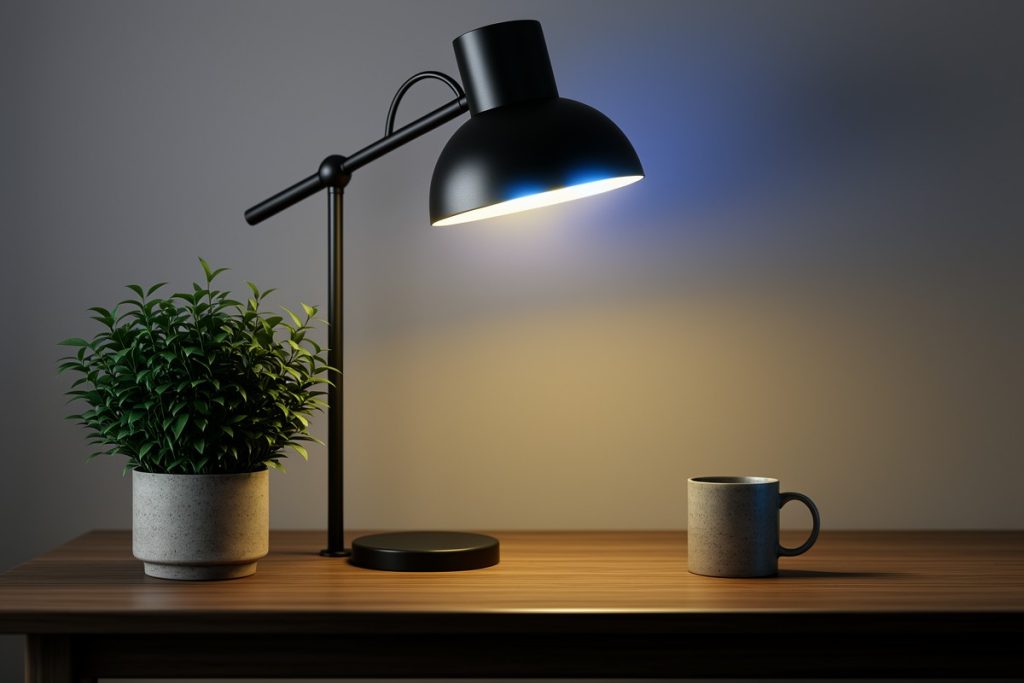
The practical goal is not to make the workstation “intelligent.” It is to make predictable routines easier. A desk lamp can turn on before a work session. A cooling fan can follow a regular schedule if it safely restarts after power is restored. A charger or ambient light can be controlled without walking across the room.
The key distinction is whether an unexpected power loss could damage data, interrupt a job, or leave hardware in an uncertain state. If the answer is yes, a smart plug should not be the device controlling it.
Separate critical equipment from convenience devices
Before connecting anything, divide the workstation into two groups. Critical equipment includes a desktop computer, laptop dock, monitor needed for unattended work, external SSDs, hard drives, network-attached storage, routers, and any device handling backups or file transfers. These should remain on their normal power controls or use a properly configured uninterruptible power supply.
Convenience devices are better candidates for smart-plug automation. Examples include a desk lamp, low-power fan, phone charger, ambient light, or speaker that does not need to remain active. Even then, check the device’s instructions. Some appliances will not restart automatically after an outage, while others should never be left operating without supervision.
This separation also makes troubleshooting easier. If an automated schedule fails, the result should be an inconvenient dark room—not a corrupted project, interrupted model run, or disconnected storage array.
What a smart plug can and cannot understand
A smart plug controls electricity. It does not understand applications, operating-system states, file locks, or model-training progress. It cannot know whether a download has finished, whether a backup is complete, or whether a local AI process is still writing to disk.
That limitation is easy to overlook when a product offers remote control and scheduling. A timed “off” command may be perfectly reasonable for a lamp but unsafe for a computer. If the machine needs to shut down, use the operating system’s shutdown function or a manufacturer-supported remote-management feature. Those methods give applications an opportunity to close files and stop processes properly.
For unattended workloads, consider configuring automatic sleep or shutdown within the operating system. A smart plug can then control a separate accessory after the computer is already off, but it should not be used as a shortcut around orderly shutdown.
Where the Kasa Smart Plug HS103P4 fits
The Kasa Smart Plug HS103P4 4-pack can fit an accessory-focused AI workstation setup. TP-Link describes the HS103 series as a light-duty plug with app-based on/off control, schedules, scenes, voice control through Alexa and Google Assistant, and no separate hub. Its specifications include indoor use, a 2.4 GHz Wi-Fi connection, and a maximum load of 15 amps resistive at 120 volts.
Those features suit routine tasks such as turning a lamp on before a scheduled work block or switching off a fan at bedtime. They do not make the plug a workload manager, backup controller, or safe replacement for a computer’s shutdown process. The connected device must still be appropriate for automated power control and within the plug’s stated limits.
A four-pack may be useful when several low-risk accessories need independent schedules. However, adding more connected devices also creates more accounts, settings, and potential points of failure. Install only the plugs that solve a clear problem.
Practical smart-plug routines for an AI workspace
Start with routines that have a forgiving failure mode. A lamp can turn on shortly before a planned work session and off at bedtime. A fan can run during occupied hours if its physical controls allow it to restart safely. A phone charger can be limited to a regular window, although the plug itself does not manage battery health; that behavior depends on the device being charged.
Remote control is helpful when you forget to switch off a light or want to prepare a workspace before sitting down. Away mode can make a lamp turn on and off at varying times, but it should not be treated as a complete home-security system.
Avoid schedules based on assumptions about workload. If model training sometimes runs late, do not set a blanket evening cutoff for equipment connected to the computer. A fixed routine is appropriate only when the connected accessory can safely stop at that time.
Smart-plug setup checklist
- Identify the device and check its rated power requirements before connecting it.
- Keep computers, active storage, NAS devices, routers, and backup equipment off abrupt power schedules.
- Test whether a lamp, fan, or other accessory restarts safely after a brief outage.
- Connect the plug to the correct wireless network and install available firmware updates.
- Use a strong, unique account password and enable multifactor authentication when available.
- Review schedules whenever work hours, equipment, or network settings change.
Smart plug versus safer control methods
| Need | Better approach | Reason |
|---|---|---|
| Turn on a desk lamp before work | Smart-plug schedule | A missed schedule is usually low consequence |
| Stop a running AI job | Application or operating-system control | Processes can finish and files can close properly |
| Protect a desktop during an outage | UPS with shutdown software | Provides battery time and an orderly shutdown path |
| Recover a frozen device | Manufacturer-supported recovery procedure | Reduces the risk of filesystem or hardware damage |
Security and privacy considerations
A smart plug is a small internet-connected device, but it still deserves basic security attention. Keep the mobile app, router, and plug firmware current. Use a unique password for the account and review which household members or voice assistants can control it. If the router supports a separate network for connected-home devices, consider using it while confirming that the plug remains discoverable and controllable.
Remote access also creates a trade-off. If you only need a lamp to follow a fixed timetable, a conventional timer may be simpler. If you need remote control, voice commands, or flexible schedules, a smart plug adds convenience. The safest approach is to keep its role narrow and avoid connecting anything that could be harmed by an unexpected shutdown.
The bottom line
Smart plugs can make an AI workstation more comfortable and predictable when they control low-risk accessories rather than the workstation itself. Automate lamps, fans, and similar devices; use software tools to shut down computers; and protect active storage from abrupt power loss. With that separation in place, a smart plug becomes a useful routine-building tool instead of a dangerous substitute for workload-aware automation.
Last reviewed: 2026-09-11